How-To Guide

You're the Creative Director

Every page of your storybook is yours to shape. Edit text, regenerate illustrations, swap art styles, reorder scenes — you have full creative control over every detail, and you don't need any design skills to do it.

What You Can Change

Think of it like a creative toolkit. Here's everything you can customize on every page of your storybook.

Edit the Text

Change any word on any page. Fix a name, rewrite a sentence, add a joke only your kid would get. The story is yours to tell.

Regenerate the Illustration

Don't love how a page looks? Hit regenerate and get a fresh illustration — same story, new art. Every generation is a little different.

Swap Art Styles

Changed your mind about watercolor? Switch the whole book to comic book, claymation, or any of our 34 art styles. Or mix styles for a surreal effect.

Add or Remove Pages

Your story doesn't have to be the length the system suggested. Add a new page for a scene you imagined, or cut one that feels slow.

Reorder Pages

Drag pages around to change the flow. Put the climax earlier. Save the quiet moment for the end. The pacing is in your hands.

Character Consistency

Toggle "enforce character consistency" to keep your characters looking the same across every page — same face, same outfit, same personality.

The Assembly View

This is where your book comes together. Assembly View lays out every page like a storyboard, so you can see the entire flow of your story at a glance.

Click any page to edit its text or regenerate its illustration. Drag pages to reorder them. Spot a gap in the story? Add a page right where you need it.

It's the bird's-eye view that makes the difference between a collection of pages and a real book. You can see rhythm, pacing, and variety — and adjust anything that doesn't feel right.
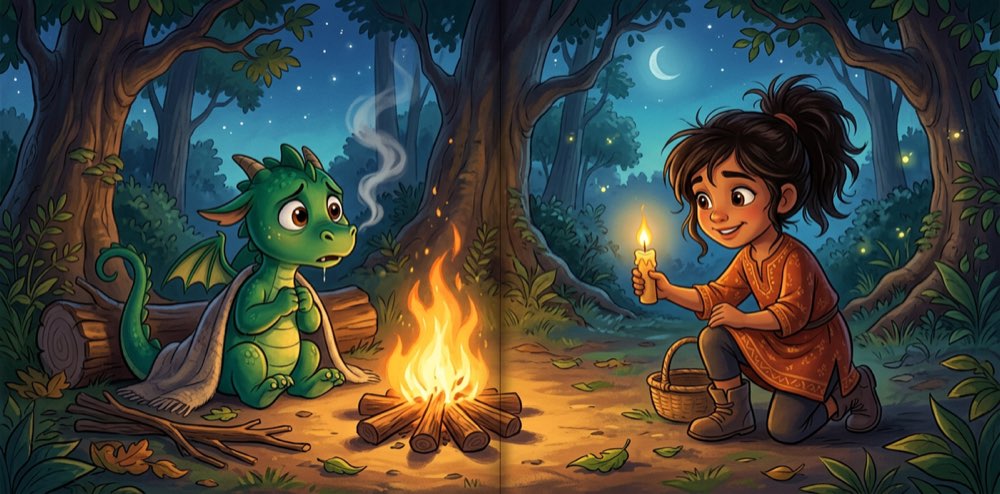
Example storybook spread showing an illustrated dragon scene in Disney art style
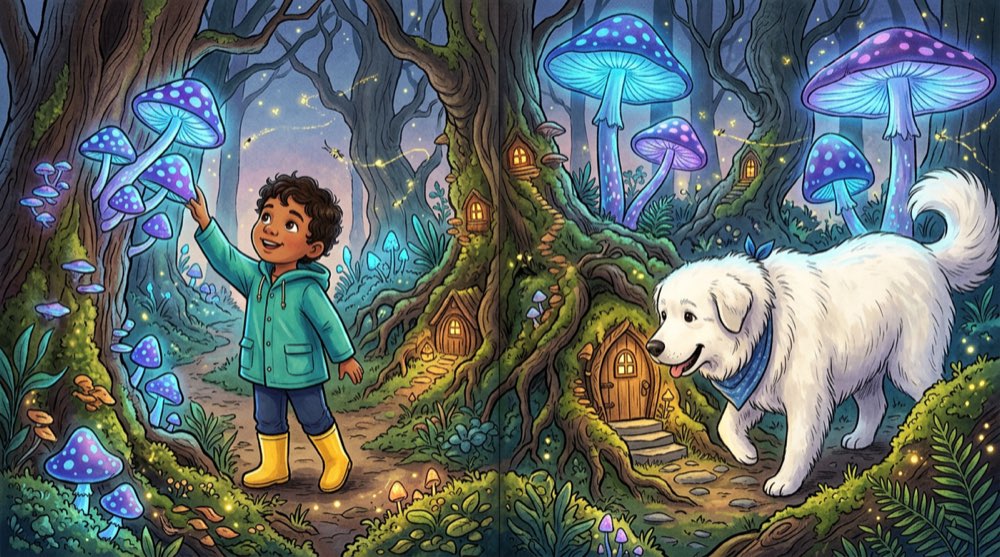
Example storybook spread showing a gouache-style forest scene with text overlay

How Text Appears on Pages

Your words and illustrations work together on every page. The way text appears depends on your page's orientation.

Portrait pages display text as a clean white ribbon overlay at the bottom of the illustration — the story reads naturally over the art without hiding the important parts.

Landscape pages use a side-by-side layout: the illustration fills one half while the text sits comfortably on the other. This gives longer passages room to breathe.

When you're ready to print, the text is burned directly into the final image — what you see on screen is exactly what arrives on your doorstep.

Portrait: Text overlay Landscape: Side-by-side

Pro Tips from Fellow Parents

Little things that make a big difference when you're perfecting your pages.

1

Regenerate 2–3 times before deciding

Each generation is slightly different. You might love the third version of a page — give yourself options before committing.

2

Keep character descriptions consistent

The more specific and consistent your character descriptions are, the more consistent they'll look across pages. Details matter.

3

Check text at print size

If you're planning to print, shorter sentences often look better on the page. Use the preview button to see exactly what the printed page will look like.

4

Preview before you print

The preview button shows you exactly how every page will print — colors, text placement, everything. No surprises when the book arrives.

5

Nothing is final until you hit Print

You can always go back and make changes. Edited text, swapped styles, regenerated art — nothing is permanent until you order. Explore freely.

Frequently Asked Questions

You can regenerate any page at any time. Every regeneration gives you a fresh illustration, so you're never locked into a version you don't love. For text, simply edit the page again and write whatever you want.
No. Your text stays exactly as you wrote it. Only the illustrations change when you swap art styles. You can switch from watercolor to comic book and your story stays word-for-word the same.
As many times as you want. Each regeneration costs credits, but there's no limit on how many times you can try. Most parents find the right look within 2–3 regenerations.
Yes. You can use a different art style on every page if you want. Some families use one style for the real world and another for dream sequences or flashbacks. It's your book — there are no rules.

Start Customizing Your Story

Your storybook is waiting. Make a storybook and shape every page until it's exactly right.